
How to Import Your Trades From TradingView


This step-by-step guide aims to walk you through importing your trades from your connected TradingView broker into UltraTrader.
Step 1: Open TradingView and log in to your broker account
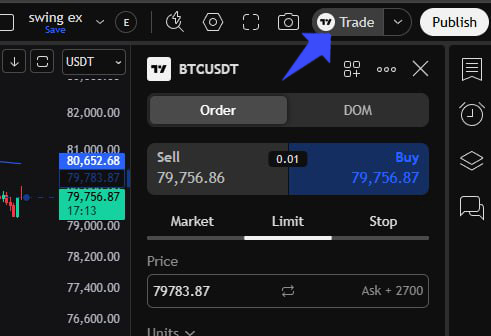
Open TradingView, click on the Trade button at the top right, and log in to the specific broker account you want to import your trades from.
Step 2: Access the Export Data menu
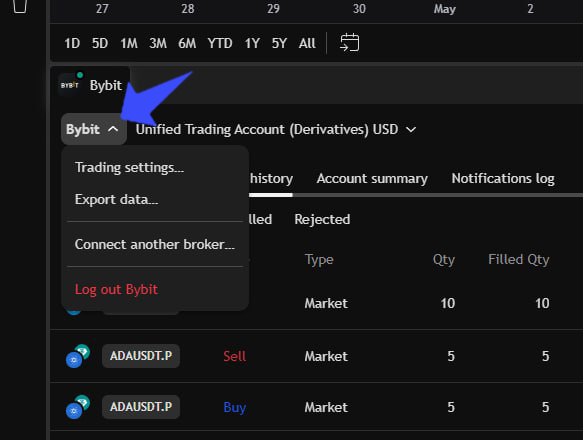
From the bottom left of your screen, first make sure the account you want to import is selected. Then, click the drop-down button right under the broker name, and click on “Export Data”.
Step 3: Select Order history and download the CSV
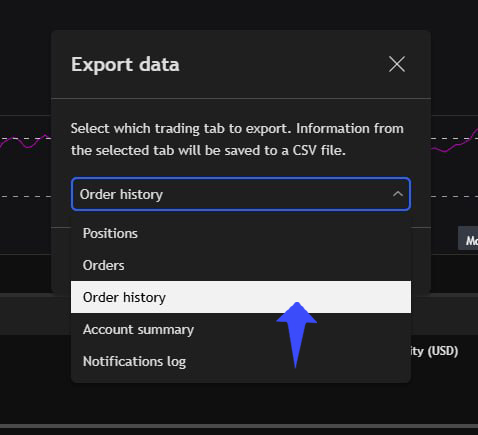
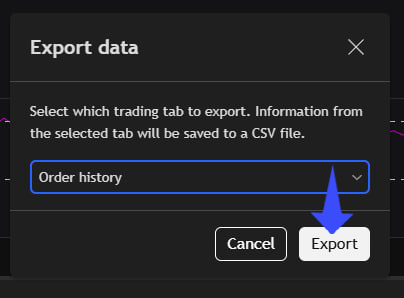
In the pop-up that opens up, select “Order history”, then click “Export”. A CSV file will be downloaded to your device.
Step 4: Set up your connection in UltraTrader
Open UltraTrader, click on New portfolio or broker connections, and select TradingView. Enter a portfolio name and select a color, then click submit.
Step 5: Upload the CSV File into UltraTrader
When prompted, upload the CSV file you just downloaded.
All done! Your TradingView trades will now be imported into UltraTrader.
Facing hiccups or have any queries?
Our live support is always ready to assist you.